MyBalio
LanguageEN

Make sense of
your money.

Track spending, stay ahead of monthly bills, and see your progress one project at a time.
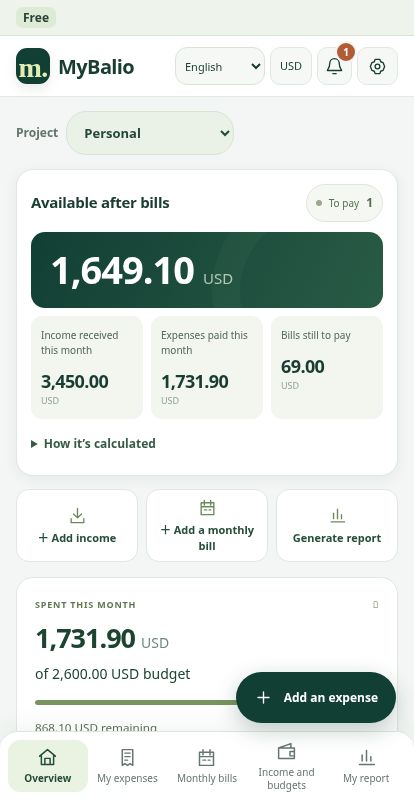
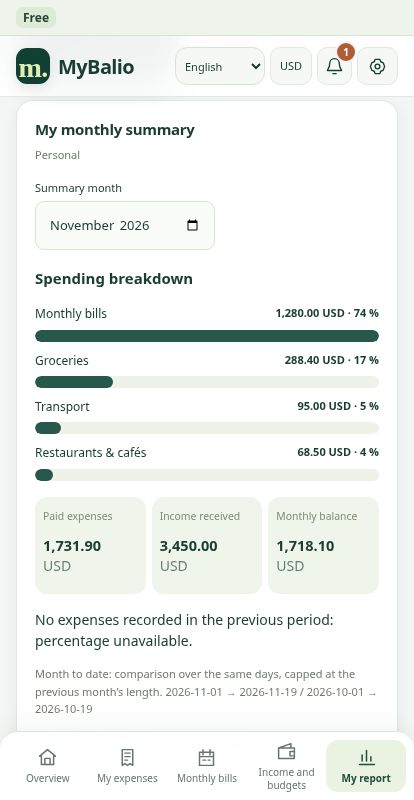
MyBalio 0.10.3 screenshots with sample data. Tap an image to enlarge it.

See the whole picture.

From everyday purchases to a shared budget, give every transaction a place.

Track everyday spending

Record expenses and income, set budgets by category, and review each month at a glance.

Stay ahead of bills

Set up recurring charges and mark them as paid when they clear. See what is still due.

Keep projects organized

Separate personal, family, and association budgets. Share a project with readers or contributors.

Track cash and card purchases

Confirm supported payment notifications on Android and record cash purchases against your cash wallet.

Your MyBalio guide.

Find the steps you need, from your first expense to your first shared project.

Get started
  1. Choose a language and review the currency shown at the top of the app.
  2. Start in local mode, or open Settings → Account and sync to sign in and sync across devices.
Add an expense or income
  1. Select a project, then tap Add an expense or Add income. You can change the project in the form.
  2. Enter the amount, description, date, and category or income type. If an expense is still due, leave it unpaid.
Manage monthly bills and budgets
  1. Open Monthly bills to set up a recurring charge. Choose the amount and due date.
  2. When it clears, mark it as paid. If a matching payment is detected, you can confirm it against the existing bill.
  3. In Income and budgets, set limits by category for the selected project.
  4. For an overall monthly limit, open Settings and check the project name above Monthly budget.
Review your monthly report
  1. Open My report and select a month and project.
  2. The report shows income received, expenses paid, and the difference. Pending bills appear separately in Monthly bills.
Set up payment detection and cash tracking
  1. On Android, open Settings → Detected payments, grant notification access, and select the banking or wallet apps to monitor.
  2. Review recognized payments before saving. Detection depends on the notification sent by the selected app.
  3. Enable Cash wallet to confirm recognized ATM withdrawals and record purchases as Paid in cash. A withdrawal adds cash, and the purchase counts as spending.
Invite someone to a project
  1. Sign in with a verified email address. In Manage projects, choose Share next to the project.
  2. Enter the invitee’s MyBalio account email and choose Reader or Contributor. Review the history notice before sending.
  3. The invitee accepts in Settings → Shared projects. Readers can view the project. Contributors can also add entries and edit their own. The owner can change or remove access.
Sync and export your data
  1. Open Settings → Account and sync and choose Sync now. Use the same account on each device you want to sync.
  2. Use Settings to export a JSON backup. In My expenses, use Export CSV to save a spreadsheet-friendly file.